
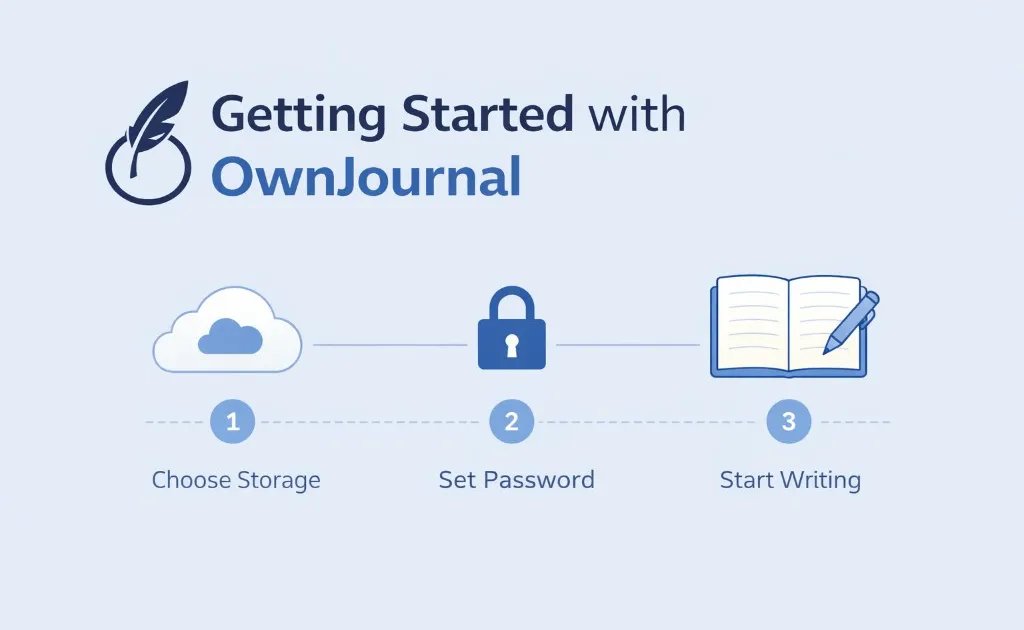
Getting Started with OwnJournal
Table of contents
Welcome to OwnJournal! Setting up your private, encrypted journal takes just a few minutes. Here's how to get started.
Step 1: Choose Your Storage
OwnJournal lets you store your journal in your own cloud storage. You can choose from:
- Google Drive — Perfect if you already use Google Workspace
- Dropbox — Great for simple, reliable cloud storage
- Nextcloud — Ideal for self-hosting enthusiasts who want maximum control
Simply connect your preferred storage provider in the app settings. Your journal data will only exist in your chosen storage — never on our servers.
Step 2: Set Your Encryption Password
Choose a strong password for encrypting your journal. This password is used to generate your encryption key locally on your device. A few important things to remember:
- Use a unique, strong password (we recommend a password manager)
- This password never leaves your device
- We cannot recover it if you forget it — that's the security guarantee
Step 3: Start Writing
That's it! You're ready to start journaling. Every entry you write is automatically encrypted before being saved to your storage. You can use markdown formatting, add tags, and track your mood.
Sync Across Devices
Install OwnJournal on your other devices and sign in with the same storage provider. Enter your encryption password, and all your entries will sync and decrypt seamlessly.
Write Offline
No internet? No problem. OwnJournal works fully offline. Your entries are saved locally and sync automatically when you're back online.